A signup form always arrives at the wrong moment. You are halfway through creating an account, the site asks for an email, and you do not want to hand over your personal inbox. You could open another tab, hunt for a disposable address, paste it, then jump back—but by the time the OTP lands, you have lost the thread of which window had the code.
The Relay Chrome extension keeps that workflow in one place. Open the popup from the toolbar, get a fresh address (already on your clipboard), wait for mail beside the page you are on, and copy a verification artifact when the extension is confident there is only one sensible choice.
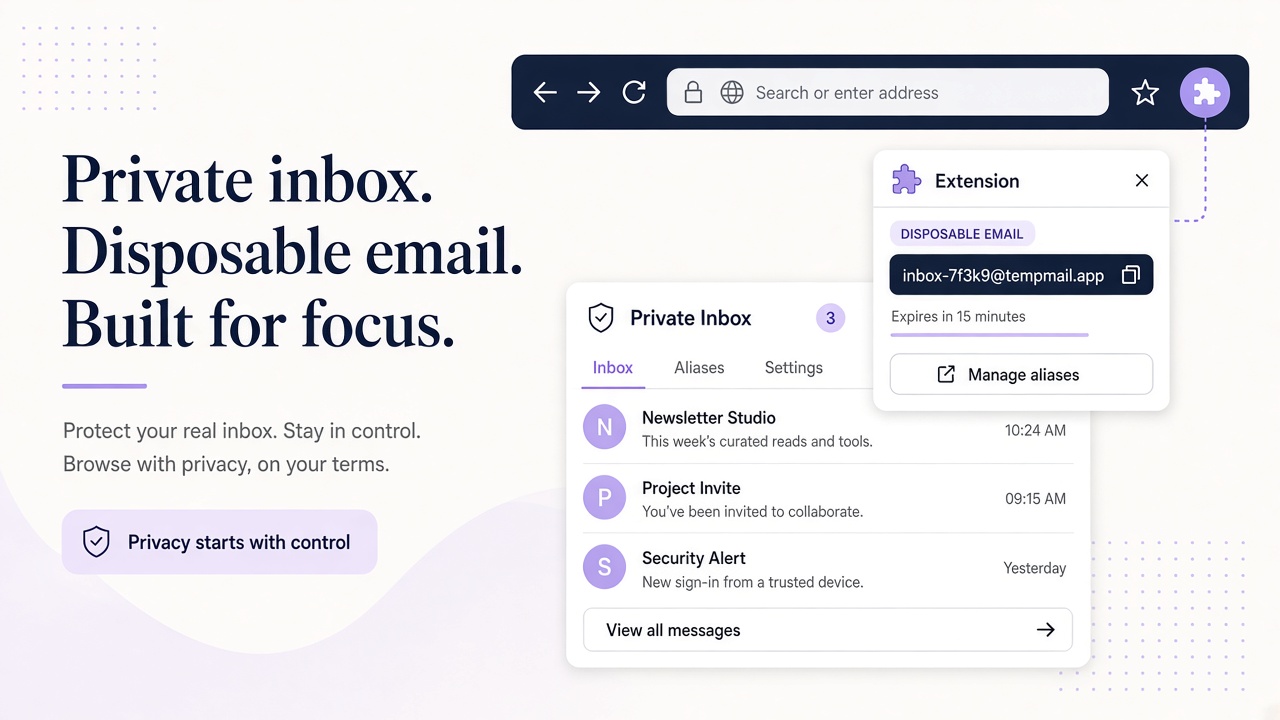
Figure 1: A verification inbox that lives next to the page you are signing up on—not in a forgotten tab.
Chrome Extension vs. another disposable-mail tab
Disposable web inboxes work, but they compete for attention. The extension is built around three habits that break during real signups: copying the wrong address, missing the moment mail arrives, and copying the wrong six digits from a busy footer.
| Habit during signup | Typical tab-based temp mail | Relay Chrome extension |
|---|---|---|
| Get an address | Generate, then manually copy | Popup open creates an address and copies it |
| Stay oriented | Alt-tab between site and inbox | Popup stays tied to the active workflow |
| OTP from a noisy email | Hunt for the code in the body | Copy button appears when one OTP is detected |
| Magic link emails | Easy to grab unsubscribe or tracking URLs | Copy appears for one primary HTTPS magic link |
| Credentials in the UI | Sometimes asks for API keys elsewhere | Sign-in is Google or a six-digit email code; no API key in the popup |
For programmatic testing at scale, the REST API and MCP tools remain the right layer. The extension is the human-speed path: one browser, one account form, one verification message.
Install and pin it once
Install from the Chrome Web Store listing. Pin the icon if you sign up for tools often—saving two clicks matters when a trial timer is ticking.
The first open asks you to sign in with Google or with a six-digit code sent to your email. That session is what authorizes the popup; you are not pasting a long-lived API key into the extension surface. If you rotate access later, sign in again the same way.
Incoming mail uses Relay’s normal inbox domains (not relaymcp.net). Treat every message as untrusted content, the same way you would in any disposable inbox. The in-popup reader is meant for verification workflows, not for archiving mail you care about long term.
What happens when you open the popup
The sequence is deliberately short:
- Open the popup — a new disposable address is created for this moment in your workflow.
- Paste — the address is already copied; drop it into the signup field on the page behind the popup.
- Submit the form — complete the site’s signup or login step that triggers email.
- Read inside the popup — messages appear in the extension inbox; open the one that matches the service.
- Copy when offered — if the extension sees exactly one OTP or one primary magic link, a copy control appears; otherwise you read and decide yourself.
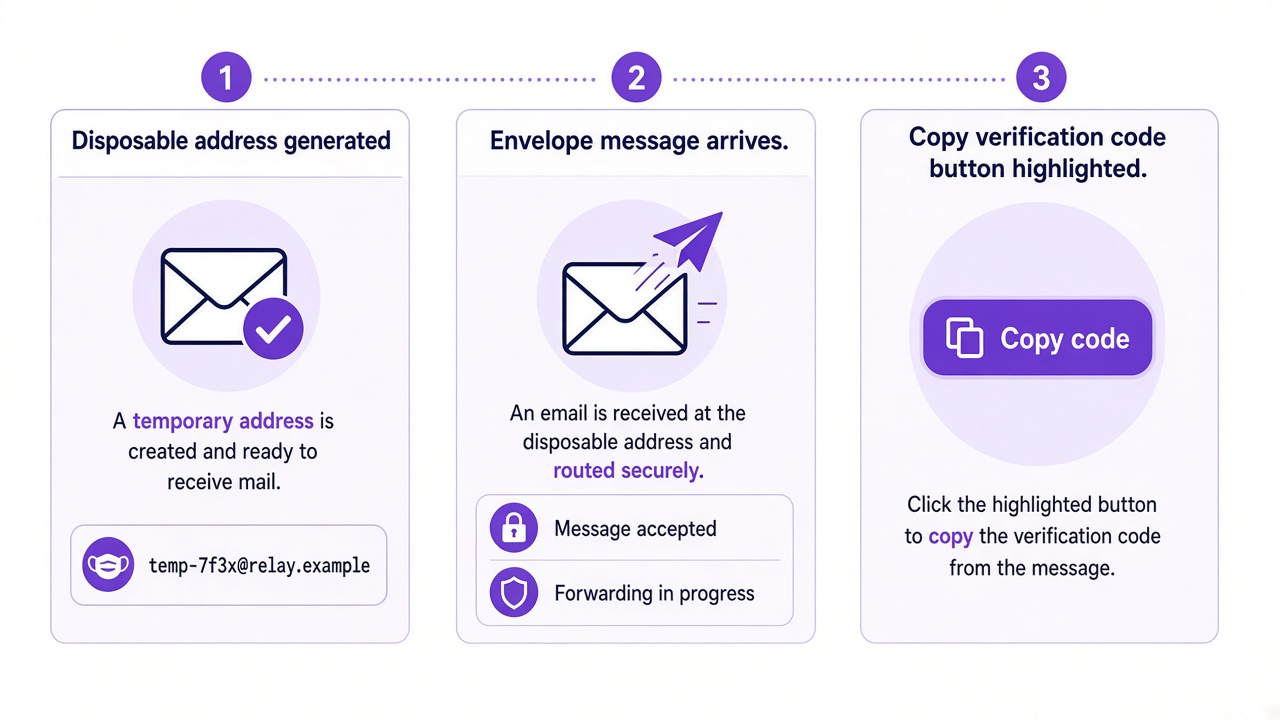
Figure 2: Address creation, delivery, and copy—only when the verification artifact is unambiguous.
Scene: the signup form
Picture a SaaS trial page: company name, password, and an email field with a green “Continue” button. You click the Relay icon first. The popup shows something like aria-7f2c… at a Relay mail domain and a small confirmation that the address was copied.
You paste into the email field without selecting text in the page twice. You submit. The signup page moves to “Check your email” while the popup stays open on the message list. You have not opened a separate disposable-mail website, and you have not polluted your personal inbox with another vendor newsletter.
If the site rejects the domain, that is the product’s policy—not a problem the extension can override. For developer-owned apps, the documentation describes domains and testing patterns that play nicely with verification mail.
Scene: the OTP email
The message subject is usually blunt: “Your verification code” or “Sign-in code.” The body is worse: a hero image, legal text, a support phone number, an order ID, and finally the six digits you need.
In the popup you open the message once; the reader shows sanitized content without asking you to execute scripts from the sender. When Relay detects one OTP candidate in that message, the copy button appears. You click it, tab back to the form, paste into the code field, and submit.
When no copy button appears, assume the message is ambiguous—multiple numbers, marketing copy that looks like a code, or a template the detector should not guess on. Read carefully and type or select manually. That restraint is intentional: a wrong auto-copy fails silently in a way humans notice too late.
Scene: the magic link where the real button is not the big one
Magic-link emails are layout traps. The prominent button might be “Manage preferences.” The actual sign-in anchor is a smaller blue link above the footer. Tracking links and unsubscribe URLs sit beside it.
Relay’s extension looks for a single primary HTTPS magic link that matches the authentication pattern. When it finds exactly one, you get the same copy affordance as with an OTP. When several links qualify—or none do—you stay in manual mode.
Before you paste a link into the address bar, pause for the same checks you would apply to any email: does the host match the product you are signing into, and is this the attempt you just started? The browser extension overview covers the shared inbox model; this article focuses on the Chrome build in the Web Store.
Signing in again and reopening the same inbox
Sessions end. Laptops sleep. You might close the popup halfway through a two-step signup and wonder whether the address still exists.
Sign in with Google or the email code again, then reopen the popup. Your saved inbox reference and read state live in extension storage so refreshing the popup does not invent a false “unread” pile. You can return to the same address, reread the verification mail, and finish the flow.
Switching to a newly generated address does not delete messages that already arrived elsewhere. The add-on cannot delete messages from the server—plan around retention using support guidance if you need lifecycle help.
What belongs in the extension—and what does not
Good fits: one-off trials, webinar registrations, shopping accounts you do not want in Gmail, QA spot-checks while you still have the product UI open, and copying a single OTP without retyping.
Poor fits: password recovery for accounts you care about, financial or medical correspondence, long-term identity, or automated parallel tests (use the TypeScript SDK article instead).
Firefox builds exist in source, but Firefox is not listed in the Mozilla Add-ons store yet—this guide is Chrome-specific. Do not expect an Edge listing here; install through Chrome if you want this exact popup workflow.
Frequently asked questions
Does the popup store my API key?
No. Authorization is the Google or six-digit email sign-in flow. Keys belong in CI and server configs, documented on the API reference.
When does the copy button show up?
Only when the extension detects exactly one OTP or one primary magic link in the open message. Multiple candidates means you choose.
Can I remove a message I regret opening?
Not from the extension. It can read and copy; it does not delete server-side mail.
Is this a replacement for Relay automation?
No. It complements hands-on browser signups. Agents and pipelines should use MCP or the API, with the safeguards described in security documentation.
Where is privacy explained?
See the privacy policy for what the extension stores locally and what crosses the network during sign-in and mail fetch.